
Committing cards in bulk
A selection mode like the one in Mail. Pick several cards at once, or a whole lesson in one swipe.
Card by card works fine while there are five of them. With a deck of several hundred words it is half an hour of dull tapping.
That is what the selection mode in the deck detail is for.
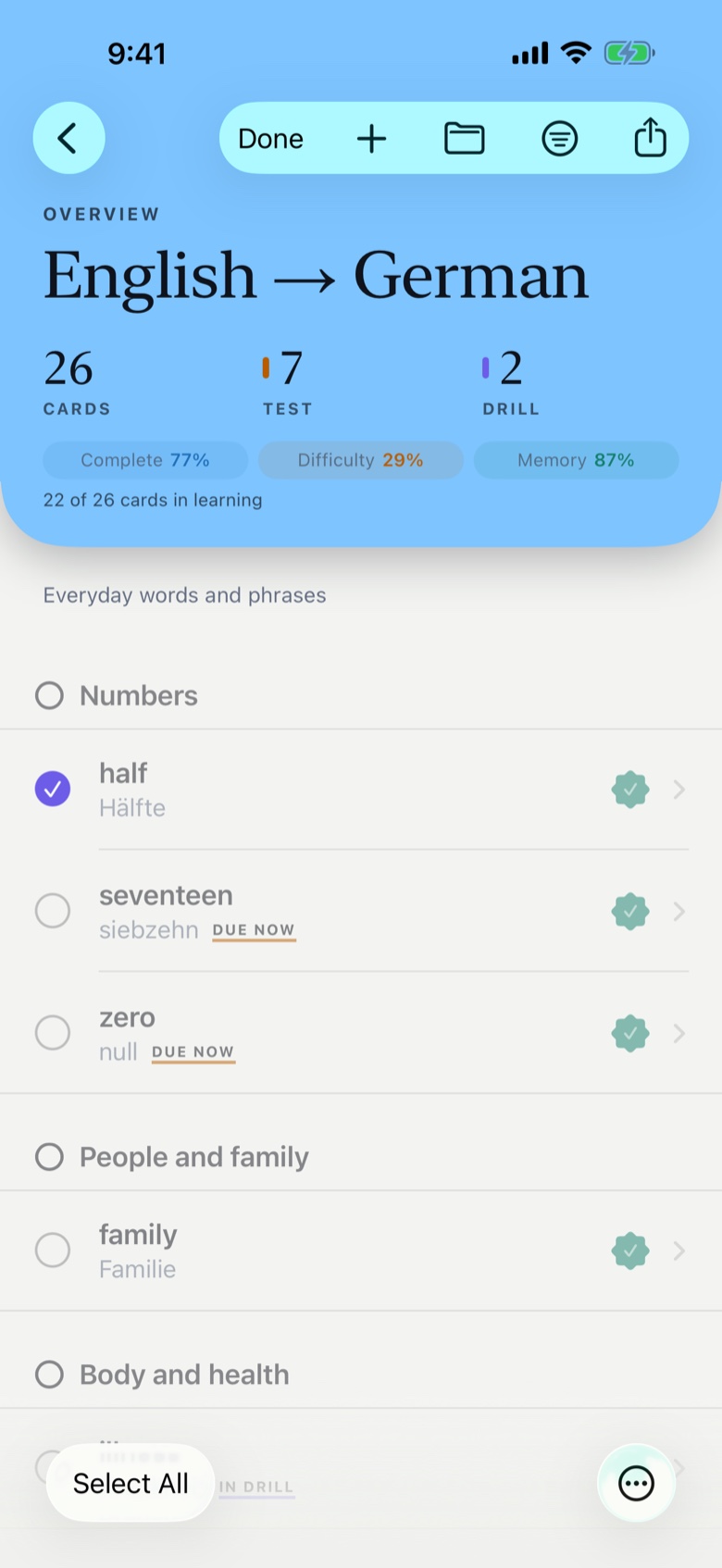
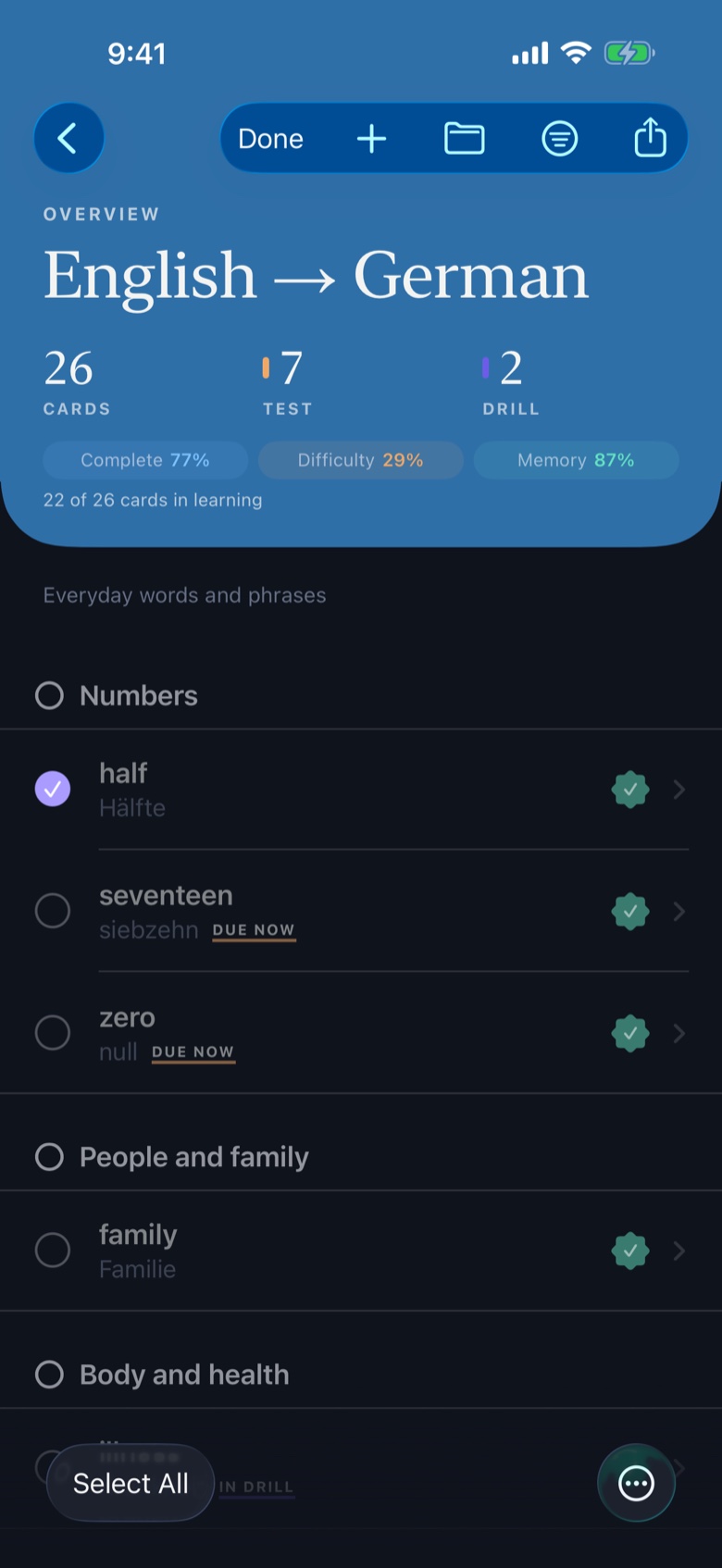
Select and commit
Select sits in the toolbar above the list. Tap it and every row gets a circle you can tick — the same as in Mail.
A bar appears at the bottom with two things: Select All on the left and the actions menu on the right. The number of selected cards shows in the title.


The menu has three actions:
| Action | What it does |
|---|---|
| Commit to test | the forward direction, question → answer |
| Commit reversed | the reverse direction; hidden for a one-way deck |
| Remove from tests | takes cards out of learning, measured values stay |
The confirmation says how many cards will actually be committed. It is not the size of the selection: anything already in learning is skipped. Select fifty cards of which forty are already committed and the confirmation says ten.
When everything selected is already committed, the app says so instead of pretending to act.
A whole category in one gesture
Categories are often lessons, and people usually learn whatever is being taught right now. So several paths lead to committing a whole category and none of them is the proper one — use whichever is at hand:
- The tick in the section header. When the list is grouped by category, the header has its own circle. One tap ticks the whole lesson.
- Filter and Select All. Filter to a category (Categories), turn on selection and tap Select All. It takes what is visible — so just that category.
- Swipe from the left in the category list. Open the category list and drag a row to the right. It offers to commit the whole category, reverse direction included.
There is one difference between the first two and the third worth remembering: Select All takes only what is currently visible, so it respects both the filter and the search. Swiping a category takes the category whole, including what is filtered out.
Forward and reversed
The forward direction is the primary action, and that is deliberate. A card is designed as question → answer; the reverse is a bonus for material that can carry it.
That is why these are two separate actions rather than one button. A single button that quietly did something else on a one-way deck would be a trap.
The reverse direction only makes sense where answers do not repeat. Two cards with the same back become one question with two answers in reverse, and there is no way to get that right. The decks that ship with the app are checked for this; in your own decks it is up to you as their author.
What happens after committing
A committed card does not go straight into the test. It gets a due date of tomorrow and shows up in today's drill — the drill is what you do with it today.
So if you commit a whole lesson and the test stays empty, nothing is broken. How scheduling works covers it in detail.
You can undo this at any time: Remove from tests erases neither the measured values nor the history, so you can commit again and pick up where you left off.